Connect Webex to RevvTik
RevvTik supports two Webex connection modes per workspace: Individual (each salesperson connects their own Webex account) or Admin (one org admin connects once and maps Webex people to RevvTik users). Modes are mutually exclusive - disconnect before switching. This guide covers connect, mapping, sync, disconnect, and reconnect for both flows.
Before You Start
Confirm the following before connecting:
- Webex must be enabled by your workspace admin (Admin → Settings → Platform connections).
- Your admin chooses a connection mode: Individual or Admin / team-wide.
- Cloud recording must be enabled in Webex for the meetings you want analysed.
- Sign in to RevvTik using the account that should receive the recordings (salesperson for Individual mode; workspace admin for Admin mode).
Choose a Connection Mode
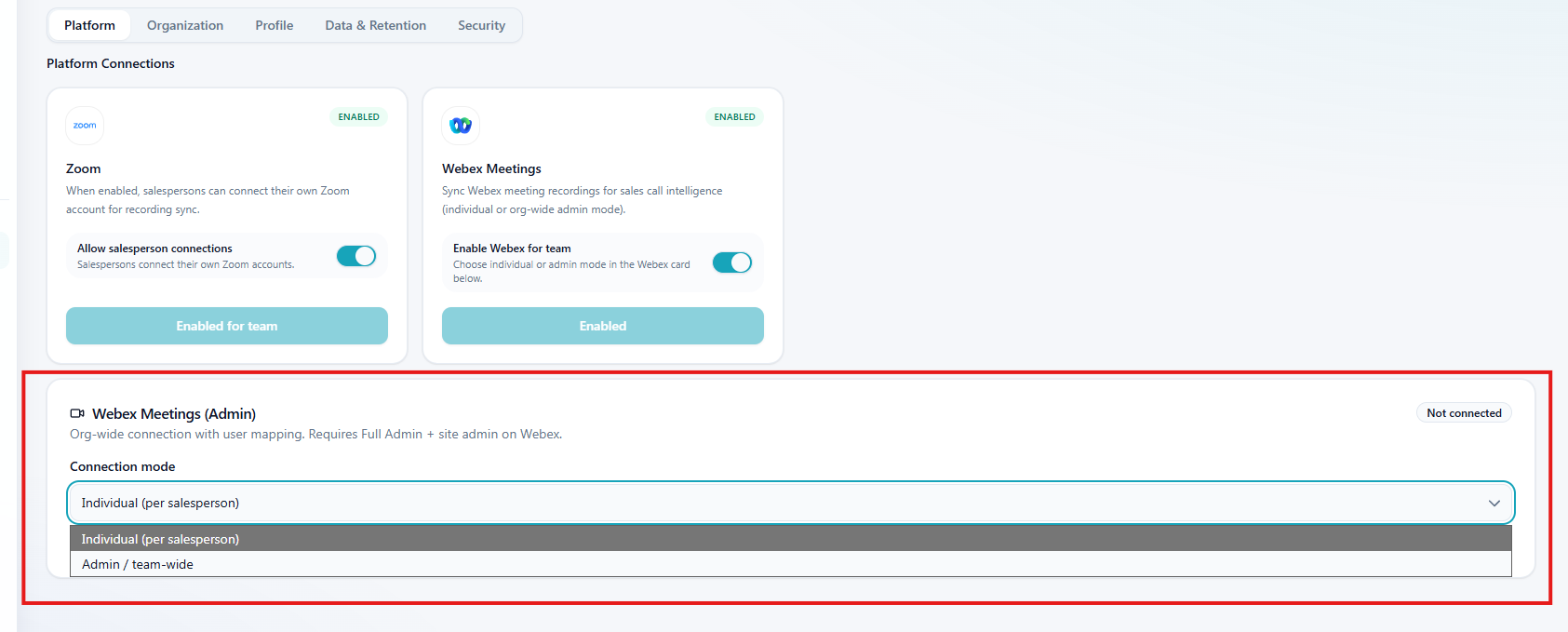
On the Webex Meetings (Admin) card under Admin → Settings → Platform, select one mode before anyone connects:
- Individual (per salesperson) - each rep connects Webex from Salesperson Dashboard → Settings → Platform Connections. Best when reps own their own recordings.
- Admin / team-wide - one Webex admin authorizes the organization, then maps Webex people to RevvTik users. Best for org-wide sync without every rep authorizing Webex.
You cannot run both modes at once. Disconnect the active connection before switching modes.
Connect Webex (Individual Mode)
Step 1: Open Platform Connections
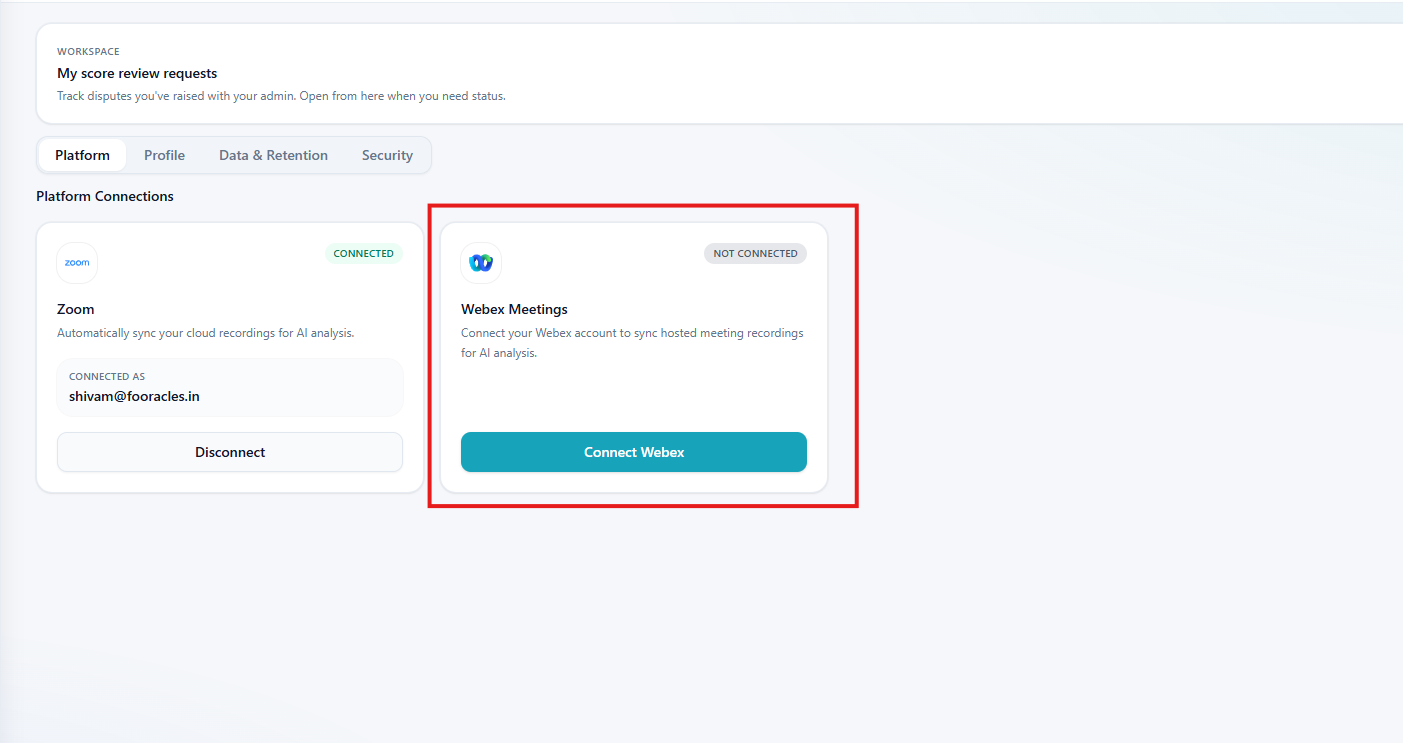
Open Salesperson Dashboard → Settings → Platform Connections.
Step 2: Click Connect Webex
Under the Webex Meetings tile, click Connect Webex.
Step 3: Review the disclosure
Read the permission disclosure (what RevvTik accesses and why), then click Continue to Webex.
Step 4: Authorize in Webex
Sign in on Webex's OAuth consent screen with the account that owns your recordings, then approve the requested permissions. Webex redirects you back to RevvTik when authorization completes.
Expected result:
- Status changes to Connected.
- Your connected Webex email becomes visible on the tile.
- Automatic recording synchronization becomes active for future cloud recordings you host.
Connect Webex (Admin / Team-Wide Mode)
Step 1: Set mode to Admin
Open Admin dashboard → Settings → Platform. On the Webex Meetings (Admin) card, set connection mode to Admin / team-wide.
Step 2: Connect the organization
Click Connect Webex, review the admin disclosure, then complete Webex OAuth with a Webex Full Admin (site admin) identity that can authorize org-wide meeting and recording access.
Step 3: Sync directory and map users
After status shows Connected:
- Click Sync directory to pull Webex people into RevvTik (email auto-match where possible).
- Open Map users and link each Webex person to the matching RevvTik salesperson or manager. Only mapped hosts are ingested.
Expected result:
- Admin email appears on the Webex card.
- Mapped users show in the mapping dialog.
- Org-wide meeting and recording events can sync for mapped hosts.
What Happens After Authorization
- User (or admin) clicks Connect Webex in RevvTik.
- RevvTik shows a disclosure of the permissions that will be requested.
- Webex displays the OAuth authorization screen.
- The user approves the requested permissions.
- Webex redirects back to RevvTik.
- RevvTik securely stores authorization credentials for that connection.
- Future Webex cloud recordings can automatically synchronize into RevvTik (for the connected user, or for mapped hosts in Admin mode).
- You may disconnect at any time from Settings.
What RevvTik Accesses
The Webex consent screen lists the exact scopes for your connection mode. RevvTik uses them only to run the coaching pipeline — not for unrelated messaging or files:
Individual mode
- Your Webex profile (read-only) - verify which Webex account is linked (
spark:people_read). - Meeting schedules (read-only) - meeting metadata and ended-meeting webhooks (
meeting:schedules_read). - Meeting participants (read-only) - identify external prospects (
meeting:participants_read). - Cloud recordings (read-only) - download recordings for transcription and AI coaching (
meeting:recordings_read). Transcription is handled by RevvTik's transcription provider, not Webex transcripts.
Admin mode
- Authorizing admin profile (read-only) - identify the connected admin (
spark:people_read). - Org people directory (read-only) - sync and map Webex people to RevvTik users (
spark-admin:people_read). - Org meeting schedules / participants / recordings (read-only) - ingest meetings and recordings for mapped hosts (
meeting:admin_schedule_read,meeting:admin_participants_read,meeting:admin_recordings_read).
RevvTik does not access:
- Webex messaging / chat content
- Webex whiteboards
- Compliance-officer transcript, chat, or Q&A APIs
- Files unrelated to meeting recordings
- Real-time meeting content during a live call
See also our Privacy Policy and Sub-processors list.
Automatic Recording Sync
After you connect, completed meetings with cloud recording enabled can flow through RevvTik automatically:
You can monitor ingestion status from Uploads → Sync Queue while recordings are waiting for Webex or being processed in RevvTik.
Why Don't Recordings Appear Immediately?
Webex usually requires additional time to generate cloud recordings after a meeting ends. RevvTik can only begin processing after Webex makes the recording available.
Depending on recording size and Webex processing time, synchronization may take several minutes. This is expected behavior and does not indicate a problem with the integration.
If a recording still does not appear after a reasonable wait, confirm cloud recording was enabled on the meeting, that the host is the connected user (Individual) or a mapped user (Admin), and that the call met your workspace's minimum duration rules.
Disconnect Webex
Individual
- Open Salesperson Dashboard → Settings → Platform Connections.
- On the Webex tile, click Disconnect.
- Confirm in the dialog when prompted.
Admin
- Open Admin dashboard → Settings → Platform.
- On the Webex Meetings (Admin) card, click Disconnect.
- Confirm in the dialog when prompted.
Expected result:
- OAuth credentials are removed from RevvTik.
- Future recording synchronization stops.
- Existing processed calls remain available in your workspace.
Reconnect Webex
- Open the same Settings location used for your mode (Platform Connections or Admin Platform).
- Click Connect Webex again.
- Complete the Webex authorization flow.
- In Admin mode, re-sync the directory and confirm user mappings if needed.
- Sync resumes automatically for new cloud recordings.
Revoke Access from Webex
If you revoke RevvTik from your Webex account's connected apps / Integrations settings:
- Future API calls and refreshes will fail until you reconnect in RevvTik.
- Disconnect (or reconnect) from RevvTik Settings to clear or renew stored credentials.
- Existing processed calls in RevvTik are not deleted solely because access was revoked.
Webex Integration FAQ
Why does RevvTik require Webex permissions?
RevvTik requests only the permissions required to discover meetings and cloud recordings, download recordings for transcription, identify meeting participants, and associate recordings with the correct salesperson account (directly or via admin mapping).
What is the difference between Individual and Admin mode?
Individual mode connects each salesperson's own Webex account. Admin mode uses one organization admin connection plus user mapping so the whole team can sync without every rep authorizing Webex. A workspace can use only one mode at a time.
Does RevvTik access meetings in real time?
No. RevvTik processes completed cloud recordings after a meeting has ended and Webex has made the recording available.
Why is my recording still processing?
Webex may still be generating the cloud recording. RevvTik begins download and processing only after Webex makes the file available, which can take several minutes depending on meeting length and recording size. Check the Sync Queue on the Uploads page for status.
In Admin mode, why aren't a rep's calls syncing?
Confirm the Webex person is mapped to that RevvTik user, the meeting was hosted by that Webex person, cloud recording was enabled, and the call met minimum duration. Use Sync directory and Map users on the admin card to fix mapping gaps.
What happens after I connect Webex?
Once connected, RevvTik can automatically discover new cloud recordings associated with your Webex account (or mapped hosts in Admin mode) and process them according to your workspace settings and plan limits.
Can I reconnect later?
Yes. Open the relevant Settings page and click Connect Webex to complete authorization again. Sync resumes for new recordings after you reconnect.
Does RevvTik use my recordings to train AI models?
No. Customer recordings, transcripts, analyses, scorecards, and coaching outputs are not used to train RevvTik models or third-party foundation models.
Where is customer data stored?
Customer data is stored in secure cloud infrastructure used to operate the RevvTik platform. Audio recordings are deleted after transcription processing completes.
How do I revoke RevvTik access from Webex?
You can disconnect Webex from RevvTik Settings (Platform Connections or Admin Platform), or revoke access directly from your Webex account's connected apps / Integrations settings.
Related Resources
FAQ
Common integration and upload questions.
Privacy Policy
How RevvTik handles Webex data and OAuth scopes.
Security
Platform security practices and vulnerability reporting.
Support
Contact support@revvtik.com for integration help.
Zoom Integration
Connect Zoom cloud recordings to RevvTik.
Google Meet Integration
Connect Google Meet recordings to RevvTik.
FreJun Integration
Connect FreJun call recordings to RevvTik.
GoTo Connect Integration
Connect your GoTo Connect organization to RevvTik.